
Light-to-sound generator app
Version 1.0.0 | 2026
LumaSynth is a creative music synthesis app that lets you create unique tones using just your camera preview. Point your camera at different light sources and colors to generate expressive sounds in a fun and intuitive way. You can record and save your creations as WAV files. The app offers an enjoyable way to explore sound creation, experiment with ideas, and discover new textures using everyday surroundings. By converting camera-preview light intensity into instrument-like sounds, LumaSynth makes it easy to reuse these sounds later in music pre-production, sound design, or other creative projects.

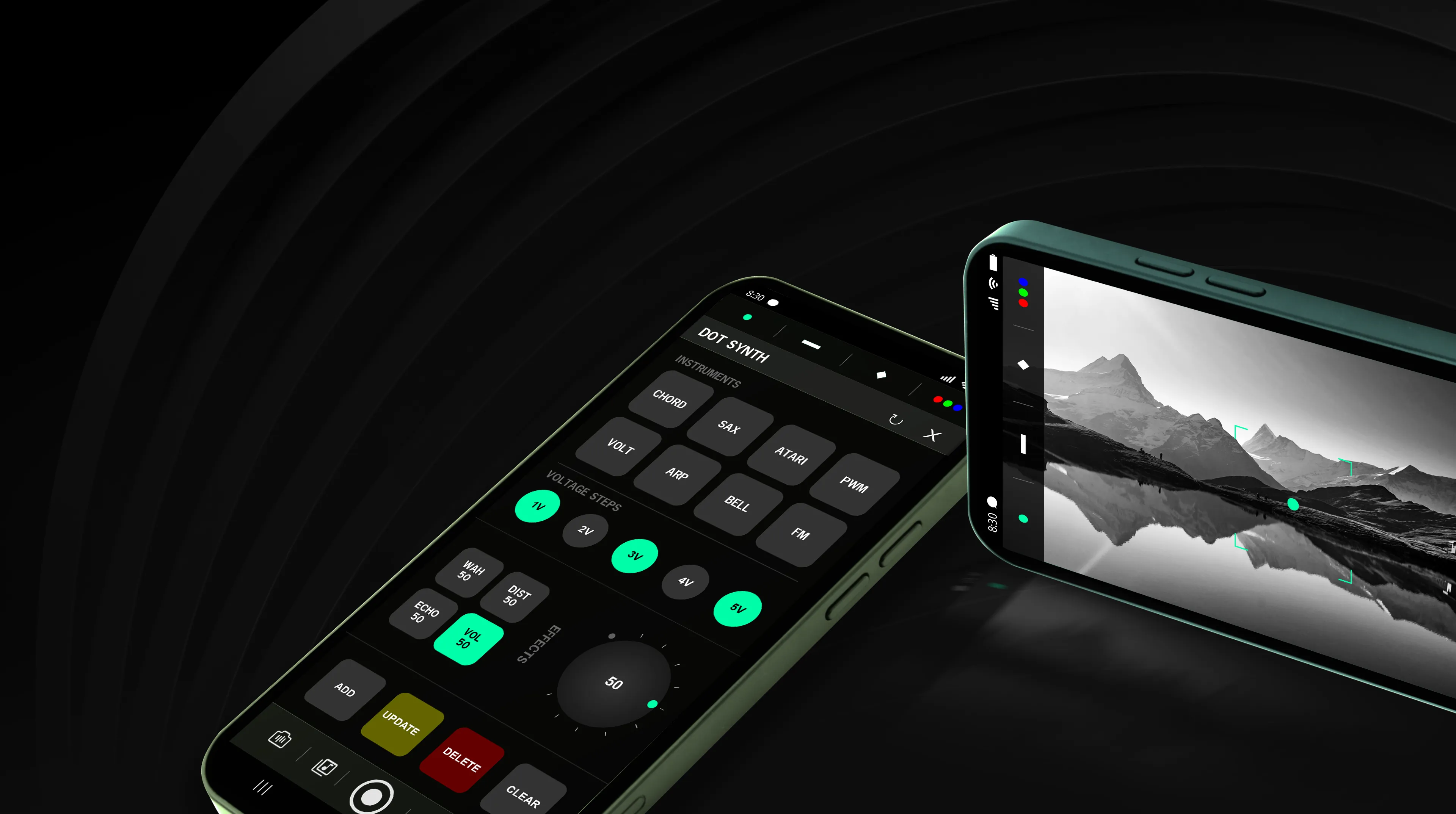
The app’s main interface (camera preview) features a Tool Panel and a Control Panel. The Tool Panel includes four types of sensors, while the Control Panel provides access to recording, the sound library, and camera flip controls.


 DOT Sensor
A trigger-driven sensor that maps camera-based light intensity (lux) changes to transient, gate-triggered amplitude envelope signals with a delayed attack and slow decay, producing percussive sounds with a long, smooth tail for expressive audio synthesis.

 STAR Sensor
A trigger-driven sensor that converts camera-based light intensity (lux) changes into triggered envelope waveforms featuring a fast attack and short decay, creating tight, punchy percussive tones.

 LINE Sensor
A continuous gate-driven sensor that converts camera-detected light intensity (lux) into smooth, sustained waveform signals with gentle amplitude variation, creating evolving melodic and ambient sound textures.

 RGB Sensor
A continuous modulation sensor that translates camera-based RGB color values into multi-layered, slowly varying waveform signals, enabling harmonically rich and expressive audio synthesis.

Press and hold a sensor to open the Synth Panel. The Synth Panel consists of four main sections: Header, Instruments, Effects, and Action Buttons. It allows you to assign instruments, voltage steps, and sound effects to the selected sensor.


The header provides two primary controls:

This section contains a set of instruments.

Once an instrument is assigned, its sound is initialized with default values:
Each parameter can be adjusted using a rotary knob by activating the corresponding effect button.

The action section includes the following controls:

The Record button is used to record the instrument's sound in WAV format and save it to the device.

Access recorded WAV files from the Library, with play, download, share, and delete options.

The camera is used only for live preview, and the microphone is used solely for audio recording.

Tap any sensor from the Tool Panel; the sensor will be added to the center of the camera preview.

Long-press the sensor in the camera preview to open the Sensor Synth panel.

Assign an instrument and add effects to the instrument sound.

Save the synth configuration and exit the Synth panel.
